
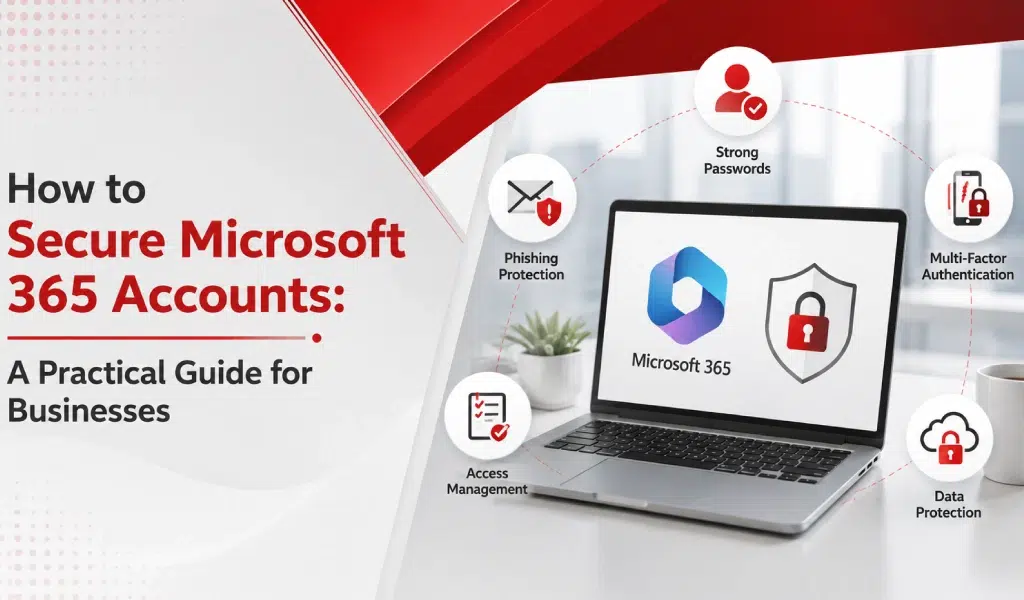
For many businesses, Microsoft 365 has become the center of daily operations.
Employees use it for:
- file storage
- collaboration
- meetings
- document sharing
- communication
In many organizations, access to Microsoft 365 effectively means access to the business.
That is why Microsoft 365 accounts have become one of the most attractive targets for cybercriminals.
The good news is that most successful account compromises are not caused by sophisticated attacks.
They are caused by weak passwords, missing security controls, excessive permissions, or simple configuration issues.
In other words, many risks can be reduced through practical security improvements.
This guide explains the most important steps businesses can take to secure Microsoft 365 accounts and reduce the likelihood of unauthorized access.
Why Microsoft 365 Security Matters
A compromised Microsoft 365 account can potentially expose:
- business email
- financial information
- customer data
- shared files
- employee records
- collaboration tools
Once attackers gain access, they often attempt to:
- steal information
- send phishing emails
- impersonate employees
- access additional systems
Because Microsoft 365 is connected to so many business functions, account security should be treated as a priority.
Step 1: Enable Multi-Factor Authentication (MFA)
If your organization only implements one security improvement, MFA should be near the top of the list.
MFA requires users to provide a second form of verification when signing in.
Examples include:
- authentication apps
- push notifications
- security tokens
Without MFA: Username + Password = Access
With MFA: Username + Password + Verification = Access
This significantly reduces the risk of compromised credentials being used successfully.
Step 2: Require Strong Password Practices
Passwords remain an important security layer.
Businesses should encourage:
- unique passwords
- longer passwords
- password managers
- elimination of password sharing
Employees often manage dozens of accounts.
Password managers help make secure behavior easier.
Many organizations evaluating account security wonder whether MFA or password managers provide more protection, but the strongest approach typically combines both technologies.
Step 3: Review Administrative Accounts
Administrator accounts require special attention.
Questions worth asking:
- Who currently has admin access?
- Does every administrator still need elevated permissions?
- Have former administrators been removed?
Every additional administrator account creates additional risk.
The principle of least privilege should guide access decisions.
Step 4: Configure Conditional Access Policies
One of the most valuable Microsoft 365 security capabilities is conditional access.
Conditional access allows organizations to create rules around how users access resources.
Examples include:
- requiring MFA
- blocking risky logins
- restricting access from certain locations
- requiring compliant devices
These controls help reduce unauthorized access without disrupting productivity. It’s important to remember that advanced security features such as conditional access may depend on your Microsoft 365 licensing plan and the capabilities included with that subscription.
Step 5: Secure Business Email
Email remains one of the most common attack vectors.
Businesses should review:
- anti-phishing settings
- spam filtering
- impersonation protection
- malicious attachment scanning
- Safe Links policies
Email security deserves special attention because many attacks begin there.
Step 6: Monitor Sign-In Activity
Microsoft 365 provides visibility into account activity.
Reviewing sign-in logs can help identify:
- unusual login locations
- impossible travel events
- repeated login failures
- suspicious activity
Early detection often prevents larger incidents.
Monitoring should become part of normal security operations.
Step 7: Review External Sharing Settings
File sharing helps employees collaborate.
However, excessive sharing can create risk.
Review:
- guest access
- anonymous links
- external sharing policies
- SharePoint permissions
- OneDrive sharing settings
Organizations should understand who has access to business information and why.
Understanding the differences between SharePoint and OneDrive can help organizations build more effective file-sharing policies and reduce permission-related risks.
Step 8: Remove Inactive and Former Employee Accounts
Employee departures are a common source of security gaps.
Accounts should be reviewed when employees:
- leave the organization
- change roles
- no longer require access
Inactive accounts should not remain active indefinitely.
Account lifecycle management is an important part of Microsoft 365 security.
Step 9: Train Employees to Recognize Threats
Technology helps.
People still make decisions.
Employees should understand:
- phishing attacks
- credential theft
- suspicious login requests
- fraudulent emails
- business email compromise
Security awareness remains one of the most effective risk reduction strategies available.
Step 10: Protect Devices Accessing Microsoft 365
Even a well-secured account can become vulnerable if the device accessing it is compromised.
Businesses should review:
- endpoint protection
- device updates
- operating system patching
- device management policies
Security should extend beyond the account itself.
Step 11: Establish Backup and Recovery Procedures
Many organizations assume cloud services eliminate the need for recovery planning.
The better question is:
“If an important mailbox or file became unavailable tomorrow, what would we do?”
Businesses should understand:
- recovery procedures
- retention policies
- backup strategies
- restoration processes
Preparation improves resilience.
Step 12: Conduct Regular Security Reviews
Microsoft 365 environments change constantly.
New users join.
Applications are added.
Permissions evolve.
Security should not be treated as a one-time project.
Organizations benefit from:
- monthly operational reviews
- quarterly security reviews
- annual assessments
Regular reviews help identify risks before they become incidents.
Many businesses use Microsoft 365 management services to help monitor configurations, review permissions, and maintain security best practices over time.
A Simple Microsoft 365 Security Checklist
Use the following checklist as a starting point:
- MFA enabled
- Strong password policies
- Administrative access reviewed
- Conditional access configured
- Email security reviewed
- Sign-in monitoring enabled
- External sharing controlled
- Former employee accounts removed
- Employee awareness training completed
- Device security reviewed
- Recovery procedures documented
- Regular security reviews scheduled
The more boxes checked, the stronger the security foundation.
Common Microsoft 365 Security Mistakes to Avoid
Many organizations accidentally create risk by:
- delaying MFA deployment
- granting excessive permissions
- ignoring account monitoring
- allowing uncontrolled file sharing
- neglecting employee training
Security improvements do not always require major investments.
Often they require consistency and visibility.
Learn More: Common Microsoft 365 Security Mistakes Businesses Make
What Should Businesses Prioritize First?
If resources are limited, start with:
- Multi-factor authentication
- Administrative account review
- Email security
- Sign-in monitoring
- Employee awareness training
These improvements often provide significant risk reduction.
Organizations without dedicated internal security resources often benefit from professional cybersecurity services to help implement and maintain these controls.
Final Thoughts
Microsoft 365 provides powerful productivity and collaboration capabilities, but those benefits also make it a valuable target for attackers.
The strongest Microsoft 365 environments are not necessarily the most complex.
They are the ones that consistently apply fundamental security practices.
Businesses that focus on MFA, access control, monitoring, email protection, employee awareness, and regular reviews are often far better positioned to reduce risk and maintain business continuity.
Securing Microsoft 365 is not about achieving perfection.
Working with an experienced Microsoft 365 services provider can help organizations strengthen security while maximizing the value of their cloud investment.
It is about making unauthorized access significantly more difficult while maintaining productivity for employees.
If you’d like help improving Microsoft 365 security, contact our team to discuss account protection, licensing, and ongoing security management.
Frequently Asked Questions
What is the most important Microsoft 365 security setting?
For many organizations, multi-factor authentication provides the largest security improvement with relatively little complexity.
Does Microsoft 365 include built-in security features?
Yes. Available security features vary depending on licensing and configuration.
How often should Microsoft 365 security be reviewed?
Most organizations benefit from ongoing monitoring, quarterly reviews, and annual assessments.
Can Microsoft 365 accounts be hacked?
Like any platform, compromised credentials and poor security practices can create risk. Strong controls significantly reduce that risk.
Is Microsoft 365 security only an IT responsibility?
No. Employee awareness and secure behavior play an important role in overall security.